Send your website visitors a card, fully automatically
A website without visitor identification is a shop without windows. Someone is probably walking in, but you have no idea who, and most visitors leave again without filling in a form. How do you reach those visitors again?

Dennis Koster
CMOO
Read on
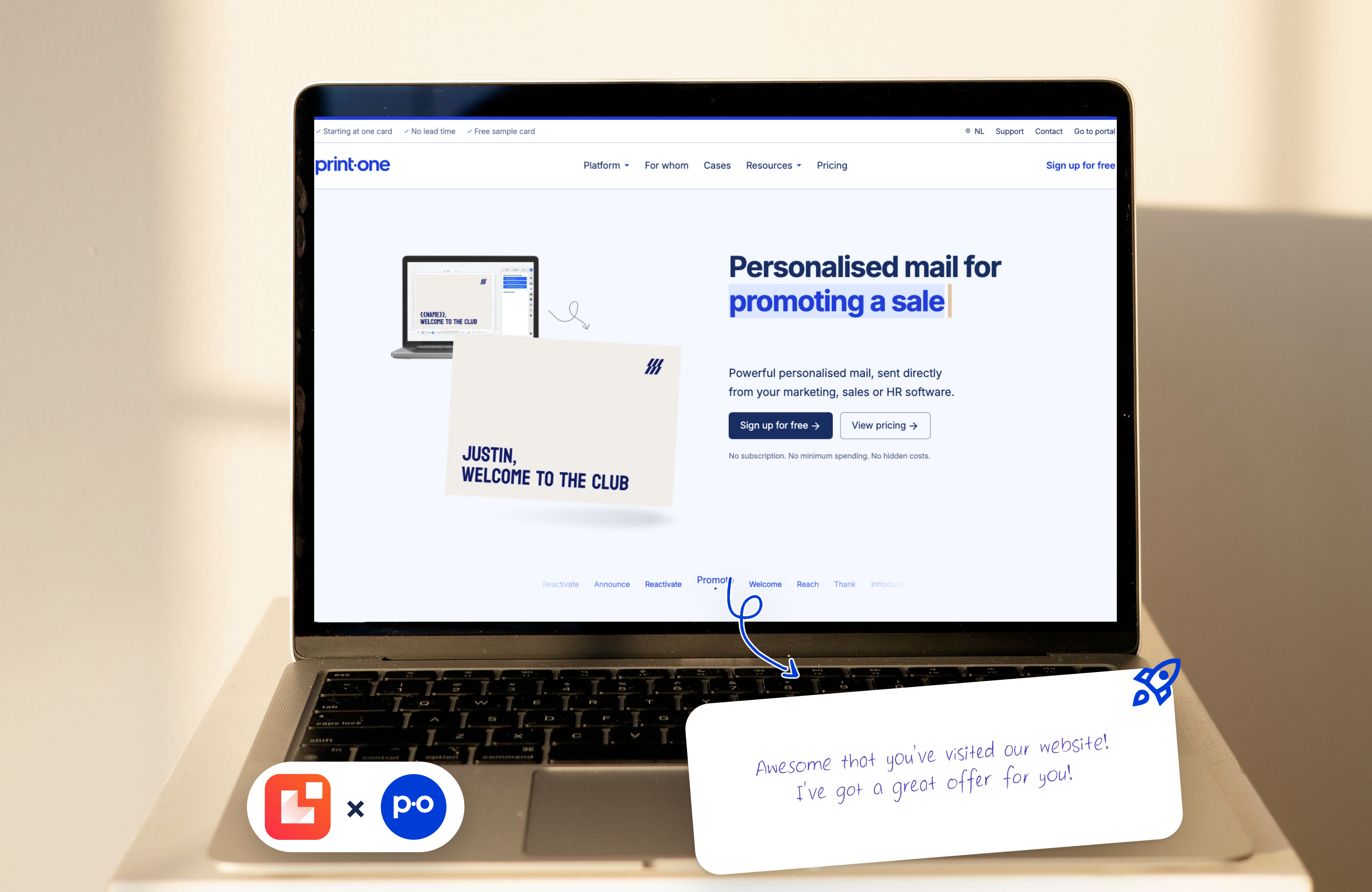
With Leadinfo, you see which companies visit your website. Then comes the hard part: what do you do with that information? An email disappears in a crowded inbox. Calling feels pushy for a cold lead. A physical card on the doormat does stand out, and nobody is prepared for it.
In this article, we show how to do that completely automatically. You connect Leadinfo to your CRM (such as HubSpot) and let Print.one send the right leads a card every day. Set it up once, and it runs on its own.
How it works
Three tools, three jobs:
Leadinfo recognizes companies on your website and determines who is interesting enough.
Your CRM (HubSpot in this example) is the sorting line: this is where the leads come in and where you build the segment.
Print.one automatically picks up the segment from your CRM and sends the card or letter.
The result: companies that browse your site seriously receive a personal card in the mail a few days later. Without you having to lift a finger.
What you need
A Leadinfo account connected to your CRM
A CRM such as HubSpot, with permission to create segments. Check out our integrations here.
A Print.one account with a CRM integration
Part 1: Leadinfo, decide who deserves a card
Step 1: Create a segment based on, for example, session duration.
Not every visitor is a lead. Someone who clicks away after five seconds is not a candidate for a card. So filter on, for example, session duration, so that only visitors who really took a look remain. Think of it as a bouncer with one simple rule: if you stay longer than [X minutes], you get in.
Step 2: Send the segment to your CRM.
Once the segment is set up, have Leadinfo automatically forward the companies to your CRM. They arrive as a company or contact, without any manual work.
Part 2: Your CRM, get the list ready for sending
Step 3: Filter on lead source.
In HubSpot, Leadinfo leads get their own lead source. That is where you build your segment. You can sharpen it further with extra criteria, such as country, industry or company size. The sharper the segment, the more relevant the card. On top of that, you can also enrich your data in HubSpot.
Part 3: Print.one, the card is on its way
Step 4: Create a recurring campaign.
In Print.one, you do not choose a one-off mailing but a recurring campaign. Every new lead that enters the segment automatically triggers a card. You do not have to set up a new send every week.
Step 5: Choose your design.
Choose an existing design or create your own. Keep it personal and short. A card that asks for one thing works better than a card that tries to say everything. Want to know what makes a card convert? Read our article How to design a card that converts.
Step 6: Select the segment from your CRM.
Link the campaign to the segment you created in step 3. This is the point where the three tools meet.
Step 7: Let Print.one import daily.
Set Print.one to pick up the new contacts from the segment every day. Print.one then prints and sends the cards, and you do not have to do anything more, except be ready for the moment the website visitors knock on your door again.
The result
Where your website used to be a shop without windows, you can now look outside and knock on the door of the companies that stayed a while longer. They get a tangible reminder on their desk, right when they are still thinking about your offer.
Turn website visitors into customers with direct mail
The email inbox is a dead end, but the mailbox is not. Create a free account now and turn your website visitors into new customers with physical cards.